
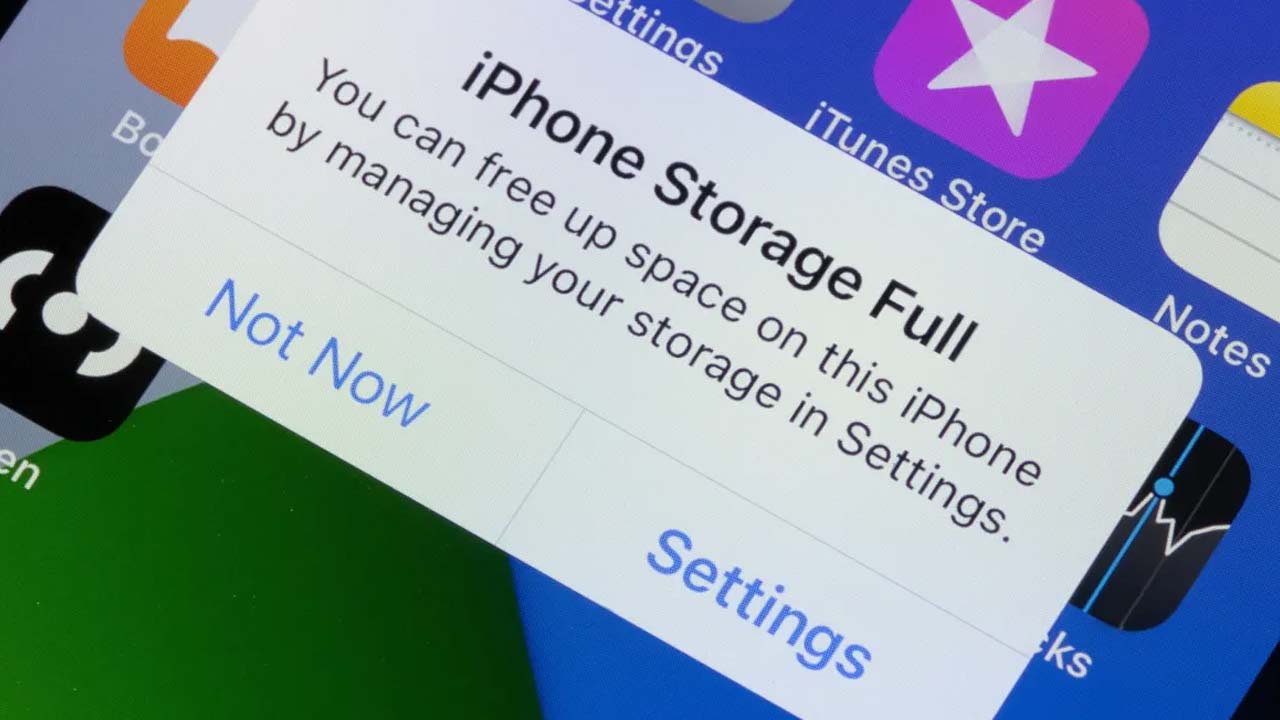


iCloud syncs data across your Apple devices. It stores photos, backups, and files. You get 5GB of free space. This fills up very quickly. A full iCloud causes problems. Photos may stop uploading. Your device backups can also fail. Managing space prevents these issues. It keeps your data accessible everywhere.
Understand these two different types. Device storage is physical space. It is inside your iPhone or Mac. iCloud storage exists online. It links to your Apple ID. Clearing one does not affect the other. Deleting a local file keeps iCloud safe. Removing an iCloud file frees only cloud space.
This feature helps identify clutter. It finds duplicate files and old backups. It also locates large items. Open your device settings first. Tap your name and select iCloud. Choose “Recommended for You.” Review the listed items here. Delete anything you no longer need. This tool offers a great starting point.
You will find that your iCloud not only backs up all the data associated with your apps (such as settings & messages) but also any unused apps stored on your device. Simply go to your Setting and select Your Name. Then, select Your iCloud and then tap Manage Storage. After selecting Backups, find and tap on the device you want to modify and then turn off the backup for the applications you no longer use. By taking this step, you will greatly reduce the overall storage size of your backup.
Old device backups take up a lot of unnecessary space in iCloud. Visit Manage Storage on iCloud to see your old backups. Locate the backup you wish to delete and then tap Turn Off & Delete. Confirm your selection when prompted. Please remember that deleting the backup from here will stop future backups from being created. If you wish to create future backups, you will need to manually turn it back on.
iCloud Photos takes up a large amount of space. If you want to free up space, open the Photos app on your device & delete any unwanted photos or videos. Please be sure to empty the Recently Deleted folder after the deletions occur as this will ensure they no longer exist and additional space is freed up. For Mac users, open the Photos app on your Mac and delete unwanted items. You can also delete unwanted photos/videos directly from iCloud.com.
Using the Files app on your iPhone to delete unwanted documents and folders, using the Mac version of the Files app to delete files from the trash, and using iCloud.com to manage files is an effective way to remove files you no longer need from your iCloud account. With regard to your Messages, remove any old conversations, and large attachments in particular, as they are consuming a lot of space in your iCloud.
These visuals also occupy iCloud space. Navigate to Settings and select iCloud. Tap “Storage” and then “Contact Images.” Delete the stored photos and posters. This simple step can recover some space.
The free 5GB plan is often insufficient. iCloud+ offers more storage space. It includes extra privacy features too. Go to Settings and tap your name. Select iCloud and then “Manage Storage.” Choose the “Upgrade” option here. Select a suitable paid plan for your needs.
Also Read: Sent an Email to the Wrong Person? Don’t Worry – Here’s How to Undo It
 Share
Share
 Internet Melts as Airport Staff’s Sweet Reaction to Kriti Sanon Goes Viral
 Sword Balancing Belly Dance Goes Viral: Jacqueline Fernandez Reacts