


It’s easy to forget your Wi-Fi password, and reconnecting devices can be difficult. Fortunately, you don’t have to worry about that anymore, since your computer saves the passwords for you. This guide explains how you can find them. We will describe the process for Windows and Mac operating systems, and getting the password will only take a few simple steps.
Mac computers use a feature called Keychain Access. This application stores all the passwords you have saved, including passwords for your Wi-Fi networks. Follow these steps to find the password. First, open the Keychain Access application. You can quickly find it by using Spotlight Search. Once you have the app open, click “Wi-Fi” from the left sidebar.
Next, find your Wi-Fi network name. Select your network from the drop-down list. Double click the Wi-Fi network entry, and a new window will open. Check the box that says “Show password”. You will need to confirm hard talks: your Mac password to verify your identity.
Your password will now be visible. You can copy it down for later use or use it however you need. This process works for any network you saved, so you won’t need to guess your password again.
Windows lets you find your current network’s password. This process uses the Network and Sharing Center. First, click the Start button. Then, go to the Control Panel. Select “Network and Internet”. Then, open the “Network and Sharing Center”.
You will see your active connections.
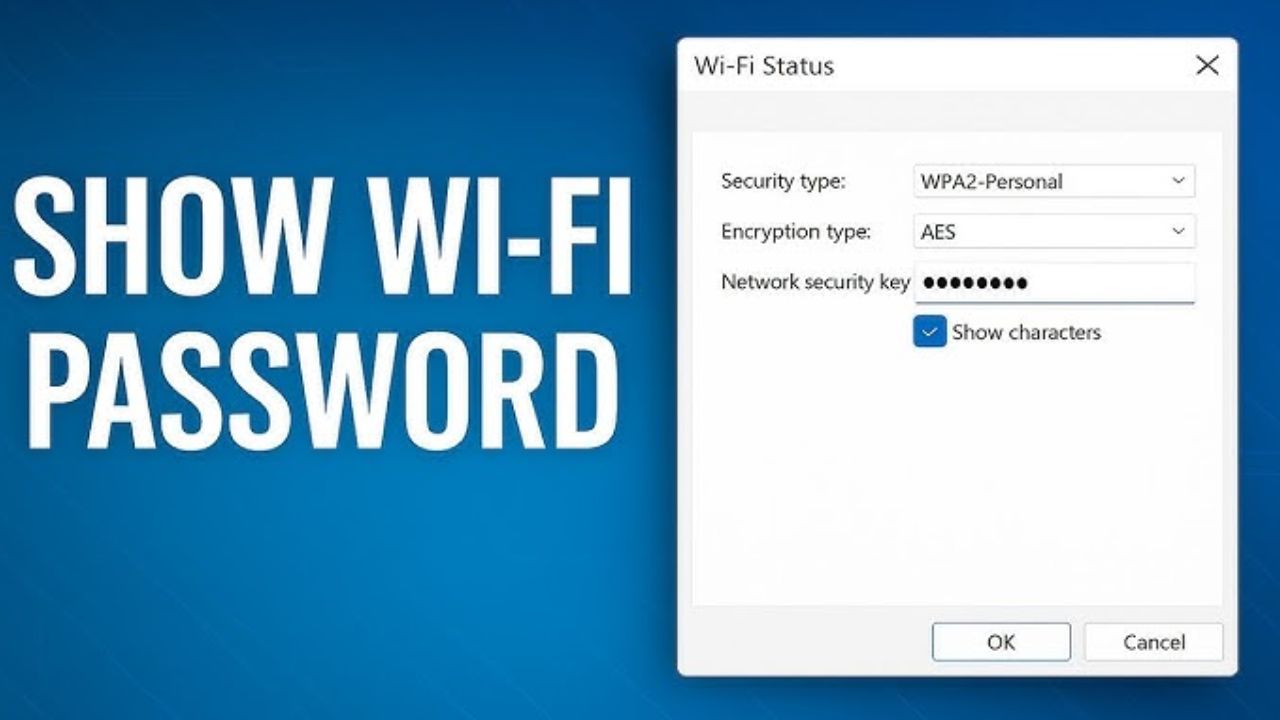
Click on your Wi-Fi network name. A new status window will open. Click the “Wireless Properties” button inside it. Then, navigate to the “Security” tab. You will see a field for the network security key.
Check the box labeled “Show characters”. Your Wi-Fi password will appear immediately. You can now read or copy it. This method only shows your current network’s password.
You can see every saved Wi-Fi password. Use the Windows Terminal for this task. First, right-click the Windows Start icon. Select “Windows Terminal (Admin)”. This opens with administrator rights. Type a specific command and press Enter.
Use the command: netsh wlan show profile. This lists all saved network profiles. Find the specific network you need. Then, type another command for the details.
The command is: netsh wlan show profile “Wi-Fi Name” key=clear. Replace “Wi-Fi Name” with the actual network name. Look for the “Key Content” field in the results. This shows your saved Wi-Fi password clearly.
You now know how to find any Wi-Fi password. Use these steps on Mac or Windows. Never get locked out of your network again. Share the password with guests easily. Keep your digital life running smoothly.
Also Read: This Famous Celebrity Failed an Exam Because of AI, You Could Be Next
 Share
Share
 RBI Silver Loan Rules 2026: Now You Can Get Loans Against Silver Jewellery
 The Girlfriend Vs Jatadhara 2 Days Box Office Report: Who Earned Least?