
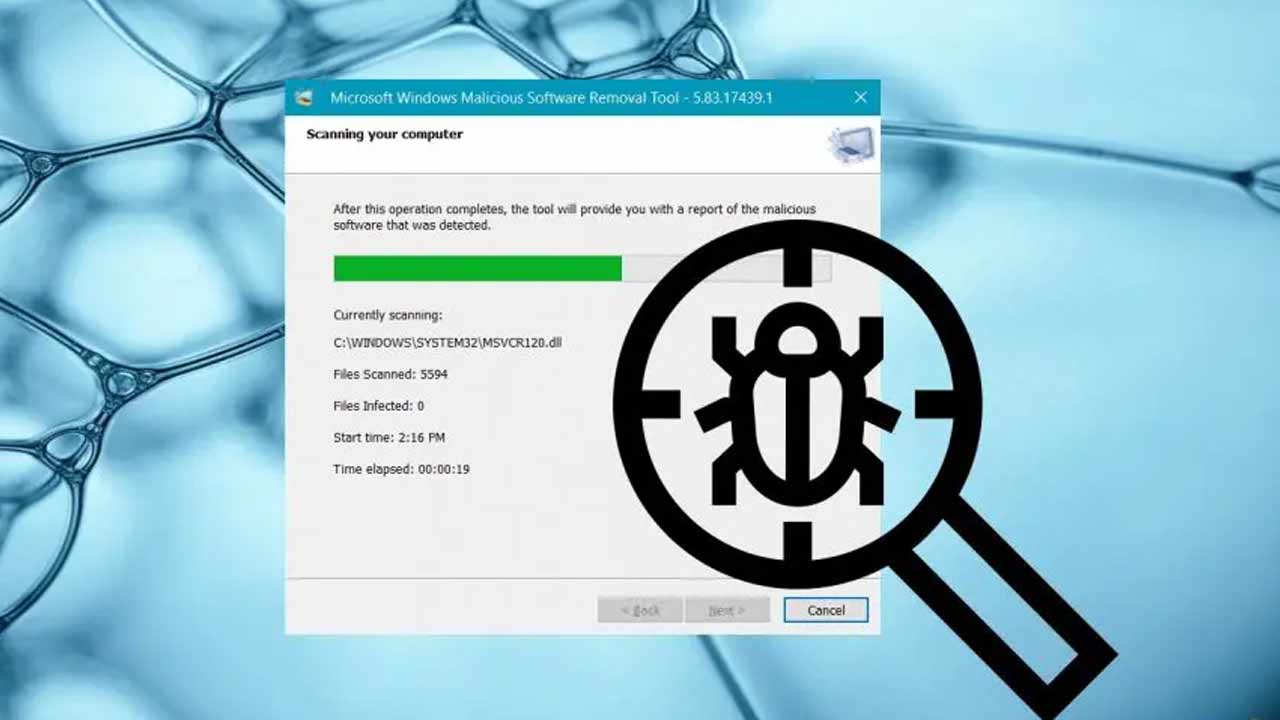


Windows PCs include a free security tool. It is the Malicious Software Removal Tool (MSRT). This tool targets widespread malicious software. It finds and removes common malware infections. Hackers often try to install malicious software. This tool helps protect your system. We will explain how to use it.
MSRT is a virus removal tool. It comes built into Windows. Microsoft updates this tool monthly. Updates arrive through Windows Update. The tool then scans your PC quietly. It looks for the most common malware. This includes Trojans, rootkits, and computer worms. The tool focuses on currently spreading threats. It removes any infections it discovers.
The MSRT tool is a monthly tool that scans the computer for malware using an automated process, but you can request a scan at any time by choosing an On-Demand Scan option. To start an On-Demand Scan, press both the Windows Key and R keys together to open a “Run” dialog box, enter the word “mrt” in the dialog box displayed and hit the Enter key. You will be asked to confirm a prompt from the User Account Control (UAC) and the MSRT tool will then be opened.
After the MSRT has opened, click on the “Next” button, and select the type of scan you want to perform from three options: “Quick Scan,” “Full Scan,” and “Custom Scan”. The Quick Scan will check the most common areas where infections are likely to be found; the Full Scan will look for infections on every part of your computer, and you can create your own Custom Scan by selecting which folders you want the MSRT to search for infections. After selecting the type of scan you want to perform, click Next to begin scanning.
The time that the MSRT takes to scan your computer will depend upon which type of scan you’ve chosen, the Full Scan could take several hours to complete. If any infections are found during the scan, the MSRT will automatically delete the malware (if possible) or repair any damage caused by the malware. Once your scan is complete, you can view detailed reports of the results of the scan by clicking on the “View Detailed Results” link. The detailed reports will show the names of every detected threat, along with additional information about each infection (e.g., names of known threats such as Emotet and WannaCry).
MSRT is not a full antivirus replacement. It is only an additional security layer. It lacks advanced Microsoft Defender features. Always use a primary antivirus program. Rely on Windows Security for best protection. Use MSRT for extra monthly checks. Keep your Windows system updated regularly. This ensures MSRT receives the latest definitions.
Also Read: Young Techie Without Degree Earns Rs1.5 Lakh Per Month
 Share
Share
 Vande Bharat Sleeper Launching in December-End: Full Details
 Xiaomi Preparing Its First Tri-Fold Phone Amid Rising Foldable Demand